PreSonus FaderPort 16 vs 8: Which Controller Should You Get?
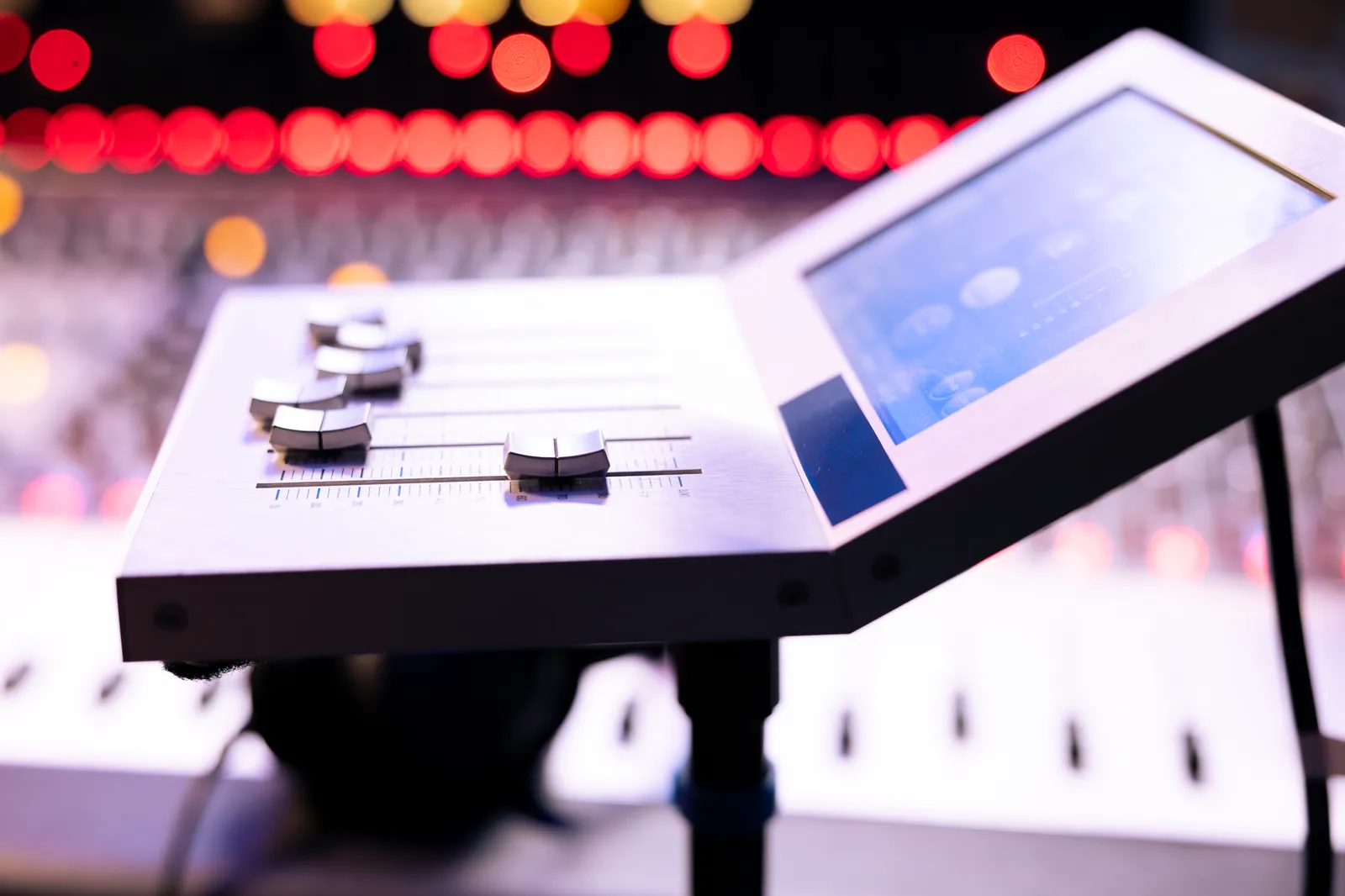
The PreSonus FaderPort line sits at a sweet spot in the DAW controller market — motorized faders at a price that doesn't require a second mortgage. But if you're deciding between the FaderPort 8 and FaderPort 16, the choice isn't as simple as "more faders = better." Channel count matters less than how you actually work.
TL;DR
- The FaderPort 8 handles 8 simultaneous channels; the FaderPort 16 handles 16 — each reduces bank-switching during longer mixes
- Both use motorized, touch-sensitive 100mm faders with native Studio One integration and HUI/MCU support for other DAWs
- The FaderPort 16 costs significantly more; for most home studios, the FaderPort 8 is enough
- If you prefer touchscreen-based DAW control over physical motorized faders, TouchDaw offers a different approach to the same problem
What Is the PreSonus FaderPort?
PreSonus makes three multi-fader controllers under the FaderPort name: the single-fader FaderPort 2, the FaderPort 8, and the FaderPort 16. This guide focuses on the two multi-fader models.
Both give you physical, motorized, touch-sensitive faders that mirror your DAW's mixer in real time. Move a fader on your controller and the DAW follows; hit play with recorded automation and the faders move on their own. This is the core loop that makes motorized faders worth the cost over passive knob-based controllers.
For a broader look at the full landscape of DAW controllers — including protocol differences and form factors — see our complete guide to DAW control surfaces.
FaderPort 8: Eight Faders, One Focused Workflow
The FaderPort 8 gives you eight motorized, touch-sensitive 100mm faders, a dedicated channel display strip above each fader, and a full transport section for play, stop, record, loop, and locate functions. It connects via USB with no additional power supply required.
What sets it apart at its price point is PreSonus's native Studio One integration. If you run Studio One, the FaderPort 8 locks in tightly: fader automation writes in real time, plugin parameters map directly to the touch-sensitive faders, and the session navigator lets you scroll through your project without touching the mouse.
For other DAWs — Pro Tools, Logic Pro, Ableton Live, Cubase, Reaper — the FaderPort 8 uses HUI or MCU protocol. Setup takes a few minutes: select the protocol in your DAW's controller preferences, and fader moves, transport controls, and channel mute/solo functions work as expected. Not every DAW exposes the same depth of parameter control over HUI/MCU, but the fundamentals — fader level, mute, solo, transport — work reliably across platforms.
Best suited for:
- Producers working with 8 or fewer simultaneous fader groups
- Studio One users who want native integration
- Home studios where desk space is limited
- Engineers who mix in focused banks rather than needing a full visual overview at once
FaderPort 16: Double the Channels, Less Switching
The FaderPort 16 doubles the fader count to sixteen. Same fader quality, same HUI/MCU support, same native Studio One integration — but you can access 16 channels at once without pressing the bank button.
For engineers working on dense mixes — full drum setups, large band sessions, orchestral production, film and TV scoring — that extra real estate matters. The difference between reaching for a physical fader directly versus banking twice to locate it is the kind of friction that accumulates across a long session.
The FaderPort 16 has a noticeably wider footprint. Measure your desk before committing. It needs a full-width position in front of your keyboard or monitors to be ergonomically comfortable. If you're thinking about how larger controllers fit into your physical workspace, our SSL UF8 review covers the desk-planning considerations that apply to any wide fader controller.
Best suited for:
- Engineers regularly working with 16+ tracks where banking disrupts flow
- Full-band recording sessions where you want all instrument groups visible at once
- Film and TV composers building large session templates
- Studio One users who want every channel accessible without a key press
FaderPort 8 vs FaderPort 16: Side-by-Side
| Feature | FaderPort 8 | FaderPort 16 |
|---|---|---|
| Fader count | 8 | 16 |
| Fader type | Motorized, touch-sensitive, 100mm | Motorized, touch-sensitive, 100mm |
| Channel displays | Yes | Yes |
| DAW protocol | HUI, MCU, Studio One native | HUI, MCU, Studio One native |
| Connectivity | USB | USB |
| Channels without banking | 8 | 16 |
| Desk footprint | Compact | Wide (roughly double) |
| Best for | Home studios, focused-bank workflow | Dense mixes, full-band sessions |
Both controllers share the same fader quality — that's the most important spec. The gap is scale, footprint, and cost. You're paying a meaningful premium for the FaderPort 16's extra faders, and whether that premium is justified depends entirely on your typical project complexity.
For current pricing on both models, Sweetwater's FaderPort listings are updated regularly and include user reviews that reflect how producers are actually using each controller in day-to-day sessions.
DAW Compatibility: What Works With the PreSonus FaderPort
Both models work with any DAW that supports HUI or MCU protocol. That includes the major platforms:
- Studio One — Native integration (deepest control)
- Pro Tools — HUI protocol
- Logic Pro — MCU protocol
- Ableton Live — MCU protocol
- Cubase / Nuendo — MCU or HUI
- Reaper — MCU protocol
PreSonus maintains setup guides on their site for each platform. If you're running a less common DAW — Bitwig, FL Studio, Reason — check the PreSonus documentation directly for the current compatibility status, since protocol support varies by DAW version.
One thing worth knowing: HUI and MCU are older protocols. They expose fader level, mute, solo, pan, and transport — but deep plugin parameter control (automating a compressor threshold from the hardware, for example) requires either native integration or third-party scripting. Studio One users get this natively. Everyone else gets reliable core controls.
For a deeper explanation of HUI vs MCU vs native protocols, and what each one actually exposes, our motorized fader DAW controller guide covers the protocol differences in detail.
Real-World Workflow: What Motorized Faders Actually Change
Motorized faders aren't just tactile — they change how you monitor automation. When you hit play and watch eight or sixteen faders moving in real time, you're reading the mix visually in a way that on-screen software meters don't match. You catch automation spikes, relative level inconsistencies, and unintended fader dips faster with physical motion than with a DAW's pixel-high fader automation lane.
The touch-sensitive mechanism adds another layer. Grab any fader and automation recording begins immediately. Release it and the motor parks at your last move. This is how analog consoles with automation have worked for decades — the PreSonus FaderPort brings that workflow into a USB-connected studio at a fraction of the cost.
That said, neither model gives you more channels than its fader count suggests. A FaderPort 8 on a 64-track session means banking through eight groups. Many engineers work this way comfortably — banks by instrument group (drums, bass, guitars, vocals) maps naturally to how they think about a mix anyway. If banking breaks your concentration, the FaderPort 16 or a higher-count controller is worth the extra desk space.
MusicRadar's coverage of the FaderPort series includes hands-on workflow notes from engineers using both models across different DAWs, which is useful if you want third-party perspectives beyond spec sheets.
A Different Approach: TouchDaw for Touch-Based DAW Control
Physical faders aren't the only path to tactile DAW control. TouchDaw takes a fundamentally different approach: instead of motorized hardware faders, it's an ultra-wide (38" × 10") touchscreen display that lays flat on your desk. Your DAW's mixer renders directly on the glass, and you control levels, routing, and automation through touch gestures.
The form factor is closer to a horizontal console layout than a vertical monitor or a compact controller strip. For producers who've worked on large-format consoles, reaching down across a wide touch surface feels more natural than reaching toward a vertical screen. At $50–190, it's priced well below the FaderPort 16 and suits a different type of producer: one who wants the spatial layout and gestural fluidity of a console surface without the mechanical components.
The practical distinction is clear: FaderPort controllers give you physical fader movement with the haptic resistance of motorized mechanics — something a touchscreen can't replicate. TouchDaw gives you every channel visible at once on a wide surface, no bank switching, at a lower entry cost. They solve slightly different versions of the same problem. See our guide to touch screen mixers for a fuller breakdown of touchscreen-based DAW control.
Pro Tip: If you're new to motorized fader controllers, spend the first few sessions using the PreSonus FaderPort only for fader reads — don't write automation yet. Watch how your existing automation moves the faders on playback, get comfortable with the physical response, and then start writing. You'll make fewer unintended moves once the muscle memory is there.
FAQ
What's the difference between the FaderPort 8 and FaderPort 16?
The FaderPort 8 provides eight motorized faders; the FaderPort 16 provides sixteen. For most home studio mixes with eight or fewer active fader groups, the FaderPort 8 handles sessions without banking. The FaderPort 16 makes sense when you're regularly working on dense projects — full-band recordings, large orchestral templates, or multi-stem film sessions — where seeing all channels at once saves meaningful time.
Does the PreSonus FaderPort work with Pro Tools?
Yes. Both FaderPort 8 and FaderPort 16 work with Pro Tools using HUI protocol. You configure the controller in Pro Tools's peripherals preferences, select HUI as the controller type, and fader moves, transport controls, mute, solo, and channel select all function correctly within the session. This is a well-documented configuration that PreSonus supports officially.
Which DAWs are compatible with the PreSonus FaderPort as a DAW controller?
Both the FaderPort 8 and FaderPort 16 use HUI and MCU — protocols supported by virtually every major DAW. Studio One has the deepest native integration. Logic Pro, Ableton Live, Cubase, Nuendo, and Reaper all work via MCU. Pro Tools uses HUI. PreSonus's website has DAW-specific setup instructions for each platform.
Is the FaderPort 8 enough for a home studio?
For most home studio producers, yes. If your typical project runs 8-24 active tracks, the FaderPort 8 handles it in one or two banks. The FaderPort 16 becomes worth the extra cost only when you're regularly recording full bands or building large session templates where constant banking is actively slowing you down.
Can the PreSonus FaderPort 16 replace a hardware mixing console?
No — it doesn't process or route audio. The FaderPort 16 controls your DAW's software mixer via USB, so all audio processing and routing happens inside the computer. It's a control surface, not a signal processor. For engineers already mixing entirely in the box, it provides the physical interaction layer that replaces the hands-on feel of a hardware board, but the audio path stays entirely digital.
How does the PreSonus FaderPort compare to the SSL UF8?
The SSL UF8 offers eight motorized faders at a higher price point, with build quality and DAW integration depth targeting professional studio use. The FaderPort 8 is a more accessible starting point with stronger native Studio One integration. The decision often comes down to DAW ecosystem, budget, and whether the SSL's premium construction justifies the price difference for your workflow. See our SSL UF8 review for a detailed breakdown.
The FaderPort 8 solves the banking problem for most studio work; the FaderPort 16 solves it completely. Pick based on how large your sessions actually run — not how large you'd like them to be. Both are solid choices as a presonus faderport daw controller, and both represent a significant workflow improvement over mixing entirely with a mouse.