Music Production Controllers: From Pads to Touch Screens
The term music production controller spans a wider category than most producers realize. Pad controllers, keyboard controllers, motorized fader banks, and touchscreen surfaces all qualify — but each type solves a different problem, and picking the wrong one means gear sitting unused on a shelf. This guide breaks down every type, explains the use case for each, and shows you how to match the right controller to your actual workflow.
TL;DR
- Pad controllers: beat-making, finger drumming, sample triggering
- Keyboard controllers: melodic writing, chord progressions, software synthesizers
- Fader banks / control surfaces: hands-on mixing, automation, channel control
- Touchscreen controllers: direct DAW channel access across all channels simultaneously
- Budget: $50-150 for entry-level; $300-600 for mid-range; $600+ for motorized faders and professional surfaces
What "Music Production Controller" Actually Means
Not every controller is a MIDI keyboard. The category covers any device that sends control data to your DAW or software instruments — from a simple two-octave keyboard to a full motorized fader surface to an ultra-wide touchscreen panel.
The confusion comes from how producers use the term. In forums, "controller" often means a MIDI keyboard. In gear stores, it might mean a pad controller or a DAW control surface. This guide treats all of them as music production controllers, because a complete workflow can require any of them — or several at once.
The Four Main Types of Music Production Controllers
Pad Controllers
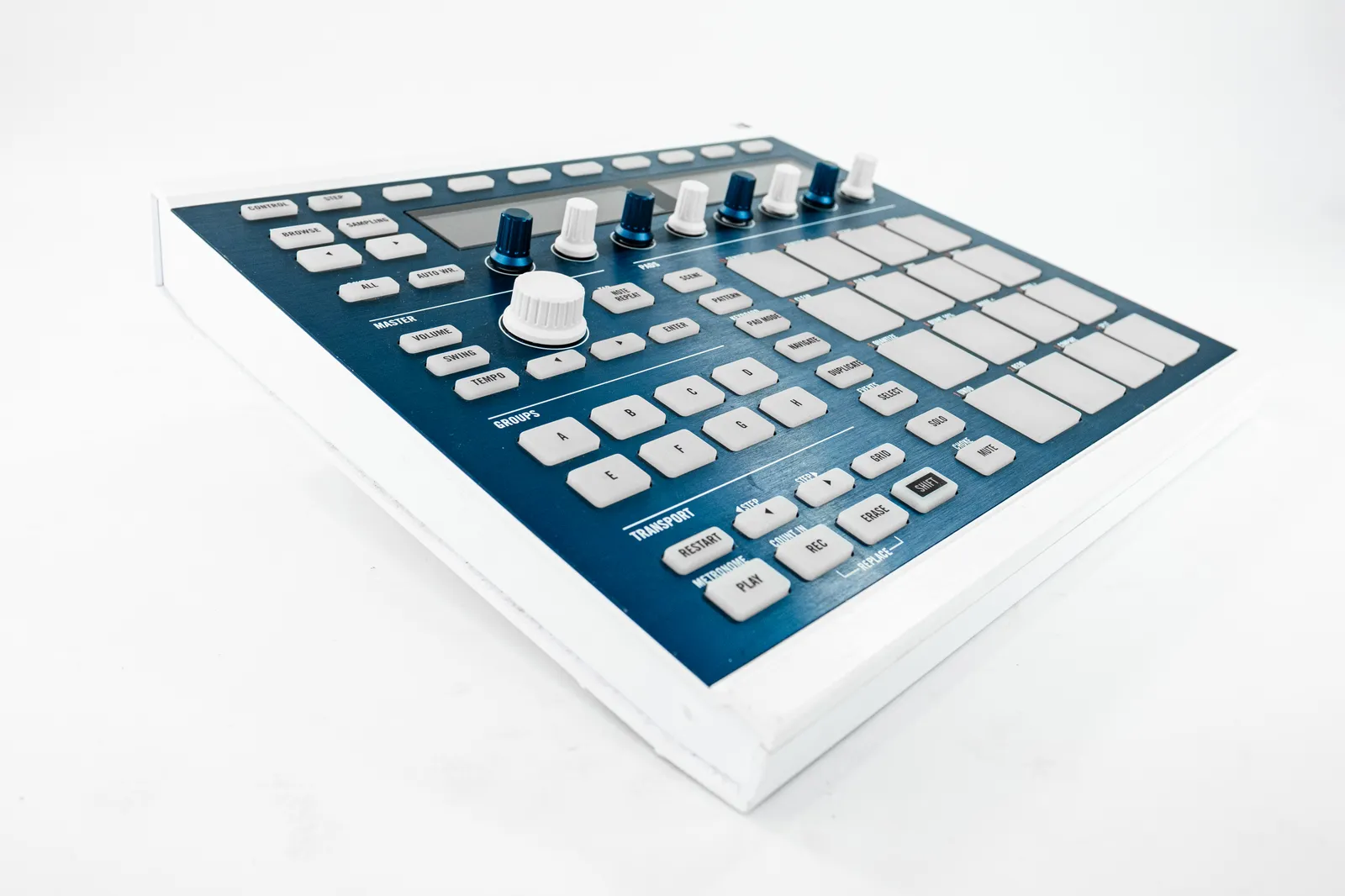
A pad controller for music production gives you a grid of velocity-sensitive rubber pads, typically in 4×4 or 8×8 layouts. They're purpose-built for:
- Finger drumming and beat-making
- Triggering clips in Ableton Live's Session View
- Launching samples in real-time performance
- Step-sequencer input in pattern-based workflows
Pad controllers feel natural for hip-hop, trap, and electronic production where rhythmic patterns built by hand — rather than programmed with a mouse — carry more feel and micro-timing variation. The velocity sensitivity matters: better pads respond to subtle pressure changes, letting you ghost notes, accents, and dynamic fills without post-editing every hit.
Key specs to compare:
- Velocity sensitivity curve and aftertouch (yes or no)
- Grid size (16 pads is standard; 64 is performance-grade)
- Built-in step sequencing or standalone capability
Keyboard Controllers
Keyboard controllers are the most common type. They look like a piano keyboard and send MIDI note data, pitch bend, modulation, and sometimes channel aftertouch.
Key size ranges:
- 25 keys: portable, fits a bag, limited range for complex voicings
- 49 keys: the practical balance of range and desk space for most home studios
- 61 keys: full octave coverage, comfortable for piano-based parts
- 88 keys: full piano range, weighted action — for pianists or composers writing orchestral parts
Most producers choosing a keyboard controller for music production start with a 49-key option. It covers melodic writing, chord work, and software synthesizer control without dominating the desk. Weighted (hammer-action) keys respond more like acoustic pianos; synth-action keys are lighter and suit quick runs in electronic production.
Controllers like the Arturia KeyLab and Native Instruments Komplete Kontrol lines add dedicated knobs and buttons mapped to virtual instrument parameters — narrowing the gap between playing and sound design without switching windows.
Fader Banks and Control Surfaces
A fader bank lets you control your DAW's mixer with physical hardware. Instead of clicking and dragging faders with a mouse, you reach for them the way you would on an analog console — grabbing multiple channels simultaneously, nudging levels during playback, and working at a pace that mouse-based mixing doesn't match.
Motorized faders are the critical differentiator. When your DAW's automation moves a fader, motorized hardware physically follows along — the fader position always reflects the actual DAW state. Non-motorized faders drift out of sync and create jumps when you grab them mid-automation.
This is the controller type that most directly affects mixing speed. If you're building beats with a keyboard, a pad or keyboard controller handles that job well. But once you're in a long mix session — adjusting volume, panning, and send levels across 24 or 32 tracks — a fader bank changes your working speed more than any other upgrade.
For a full breakdown of this type, our motorized fader DAW controller guide covers every price tier from budget to professional.
Touchscreen DAW Controllers
Touchscreen controllers are the newest format in the category. Instead of physical knobs and buttons statically mapped to parameters, a touchscreen surface shows your DAW's actual mixer and responds to direct touch — faders, knobs, sends, and EQ all where you'd expect them.
Advantages over traditional control surfaces:
- No parameter mapping required — the display reflects your actual DAW state
- Simultaneous access to many channels at once without bank switching
- Layout updates instantly when your DAW session changes
The Steven Slate Audio RAVEN is the best-known option in this category — a vertical touch panel with dedicated RAVEN software for Mac. TouchDaw takes a different form factor approach: an ultra-wide 38" × 10" horizontal surface that lays flat on your desk at $50-190, versus the RAVEN's vertical design at $2,000-5,000+. The horizontal layout means you can see all your channels across the panel the way you'd scan an analog console, rather than scrolling vertically.
For a full spec comparison of touchscreen mixing surfaces, the touch screen mixer guide covers both approaches in detail.
Best Controller for Music Production: Type Comparison
| Controller Type | Best For | Price Range | Key Feature |
|---|---|---|---|
| Pad Controller | Beat-making, clip launching | $50-300 | Velocity pads, 4×4 or 8×8 grid |
| Keyboard Controller (25-49 key) | Sketching ideas, synths | $80-400 | Compact, portable |
| Keyboard Controller (61-88 key) | Piano parts, composing | $200-1,500 | Full range, optional weighted action |
| Fader Bank (non-motorized) | Basic DAW control | $100-300 | Physical faders, low cost |
| Fader Bank (motorized) | Serious mixing sessions | $300-1,500+ | Motorized faders, MCU/HUI protocol |
| Touchscreen (RAVEN) | Professional Mac workflow | $2,000-5,000+ | Custom software, vertical panel |
| Touchscreen (TouchDaw) | Multi-channel DAW mixing | $50-190 | Ultra-wide horizontal, Mac + Windows |
How to Choose the Best MIDI Controller for Music Production
The right controller depends on what you actually spend most of your session time doing.
You write melodies, chords, or play software instruments: A keyboard controller. Start with 49 keys unless you're a trained pianist — in that case, 61 or 88 with weighted action makes more sense.
You build beats, program rhythms, or trigger samples: A pad controller will serve you better than a keyboard. The layout and velocity response are optimized for rhythmic input in a way keyboards aren't.
You mix tracks regularly: A fader bank or control surface will speed up your workflow. Mouse-based mixing forces one parameter at a time. Physical faders let you grab multiple channels simultaneously and work at a pace that's genuinely different from editing parameter by parameter. The DAW control surface guide covers protocols, compatibility, and what separates entry-level from professional options.
You do all three: Most working producers end up with at least two types. A compact keyboard sits above the fader bank. Pads route to a separate channel in the template. Each controller type serves a different moment in the session, and the combination compounds your workflow efficiency beyond what any single controller achieves alone.
Music Production MIDI Controller Recommendations by Budget
Under $150:
- Pads: Akai MPD218 — solid build, USB-powered, reliable 16-pad layout
- Keys: Arturia MiniLab MkII — 25 keys, 16 rotary encoders, compact footprint
$150-400:
- Keys: Native Instruments Komplete Kontrol A49 — tight DAW integration, well-constructed
- Pads + Sequencer: Native Instruments Maschine Mikro — pads with built-in step sequencer
$400-800:
- Keys: Arturia KeyLab 61 MkII — 61 keys, deep software integration, onboard faders
- Fader Bank: PreSonus FaderPort 8 — eight motorized faders, USB, strong Studio One integration
For home studio context and how controllers fit into a complete setup, the home recording studio equipment checklist covers the full gear chain and what to prioritize at each budget level.
These recommendations reflect specs and market positioning at time of writing. For current pricing and detailed spec sheets, Sweetwater's controller section is the most reliable reference. MusicRadar's buyer guides offer comparison-tested editorial reviews across all controller categories.
Pro Tip: Don't buy a controller for the workflow you aspire to — buy it for what you're doing right now. A 49-key keyboard and a pad controller handle 90% of production workflows at reasonable cost. Adding a fader bank when you're actively mixing 10+ track sessions every week is a concrete upgrade with an obvious return. Buying all three types upfront while you're still learning your DAW means most of the gear sits unused.
Frequently Asked Questions
What is a music production controller?
A music production controller is any hardware device that sends control data to your DAW or software instruments. The category includes MIDI keyboard controllers, pad controllers for beat-making, motorized fader banks for DAW mixing, and touchscreen surfaces for direct channel control. Each type solves a different production workflow problem.
What's the best controller for music production beginners?
A 49-key MIDI keyboard controller is the most versatile starting point. It covers melodic writing, chord input, and software synthesizer control without taking up much desk space. If you primarily build beats rather than write melodies, start with a pad controller instead. Pick the type that matches what you're actually doing in sessions right now, not what you imagine doing eventually.
Do I need a MIDI controller to make music?
No — you can produce entirely with a mouse and keyboard in a DAW. Controllers improve workflow speed and feel but don't change what's technically possible. Most producers add controllers gradually: you start programming everything with a mouse and eventually buy a pad or keyboard because specific tasks feel tedious without one.
What's the difference between a MIDI controller and a DAW control surface?
A MIDI controller (keyboard or pads) sends note and modulation data to software instruments. A DAW control surface (fader bank or touchscreen) controls your DAW's mixing parameters — volume, panning, mute, solo, EQ, sends. Some devices do both. Most producers benefit from a MIDI input controller before a dedicated control surface becomes relevant.
Is a touchscreen controller better than traditional motorized faders?
They have different trade-offs. Motorized faders offer tactile resistance and fine physical precision for level adjustments. Touchscreens give you simultaneous visual access to all channels without parameter mapping, and they update instantly when your session changes. Working engineers often use both. Sound On Sound's mixing workflow coverage is a useful reference for how professionals approach the choice at different production levels.
How many controllers do most working producers have?
Two to three is common: a MIDI keyboard (or pad controller), a DAW control surface for mixing, and sometimes a dedicated hardware drum machine or sampler. The exact combination varies by genre. Hip-hop producers often favor pad controllers and samplers. Mix engineers lean toward fader banks with motorized faders. Composers working in notation tend toward full-range keyboard controllers. Start with one type, learn it completely, and add others when a specific gap in your workflow becomes obvious.
The right music production controller isn't the most expensive one — it's the one that removes friction from how you already work. Start with the type that matches your current production focus, learn it deeply, and add other controller types when a specific gap in your workflow becomes concrete.