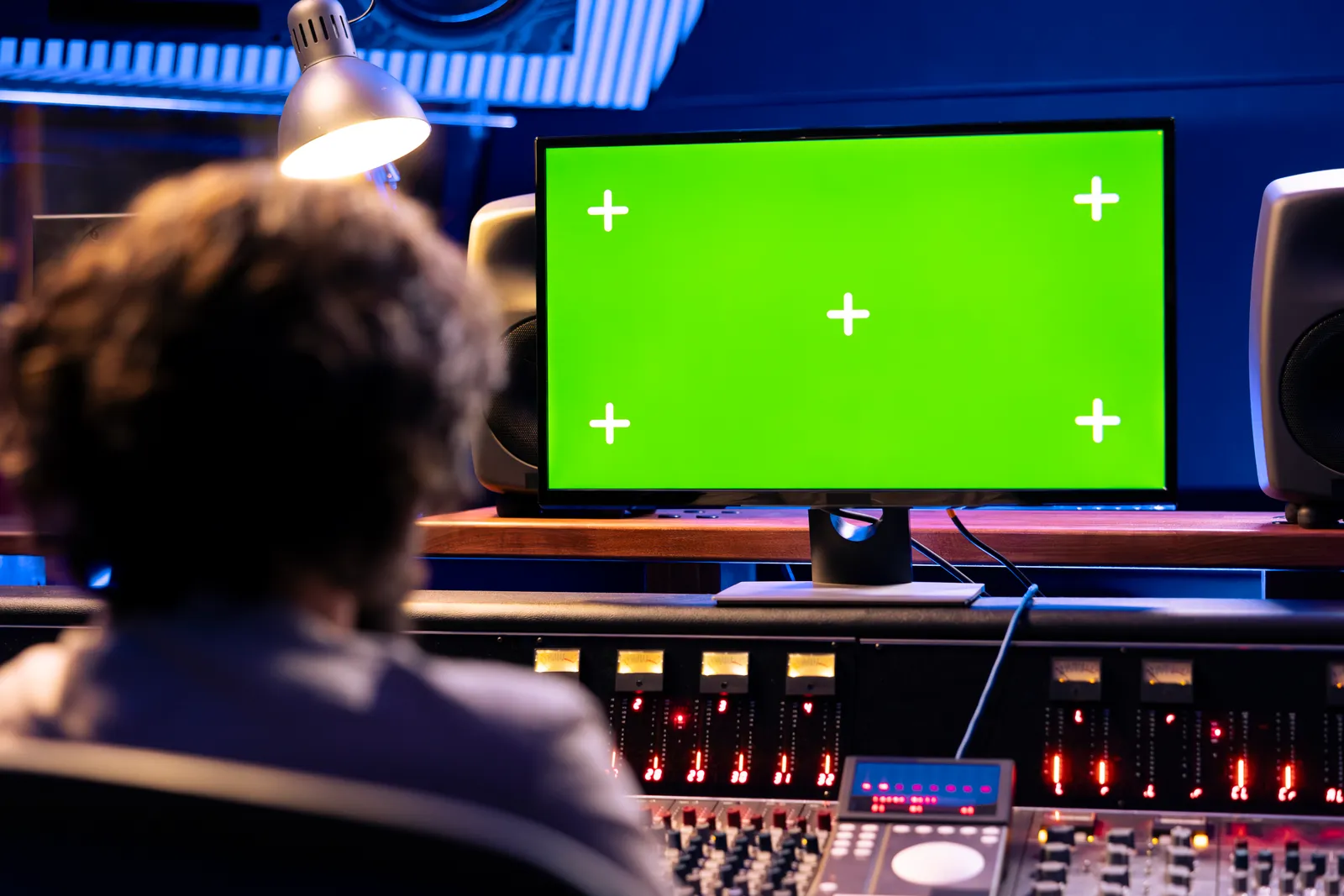
MIDI Control Surfaces Explained: Types, Protocols & What to Buy
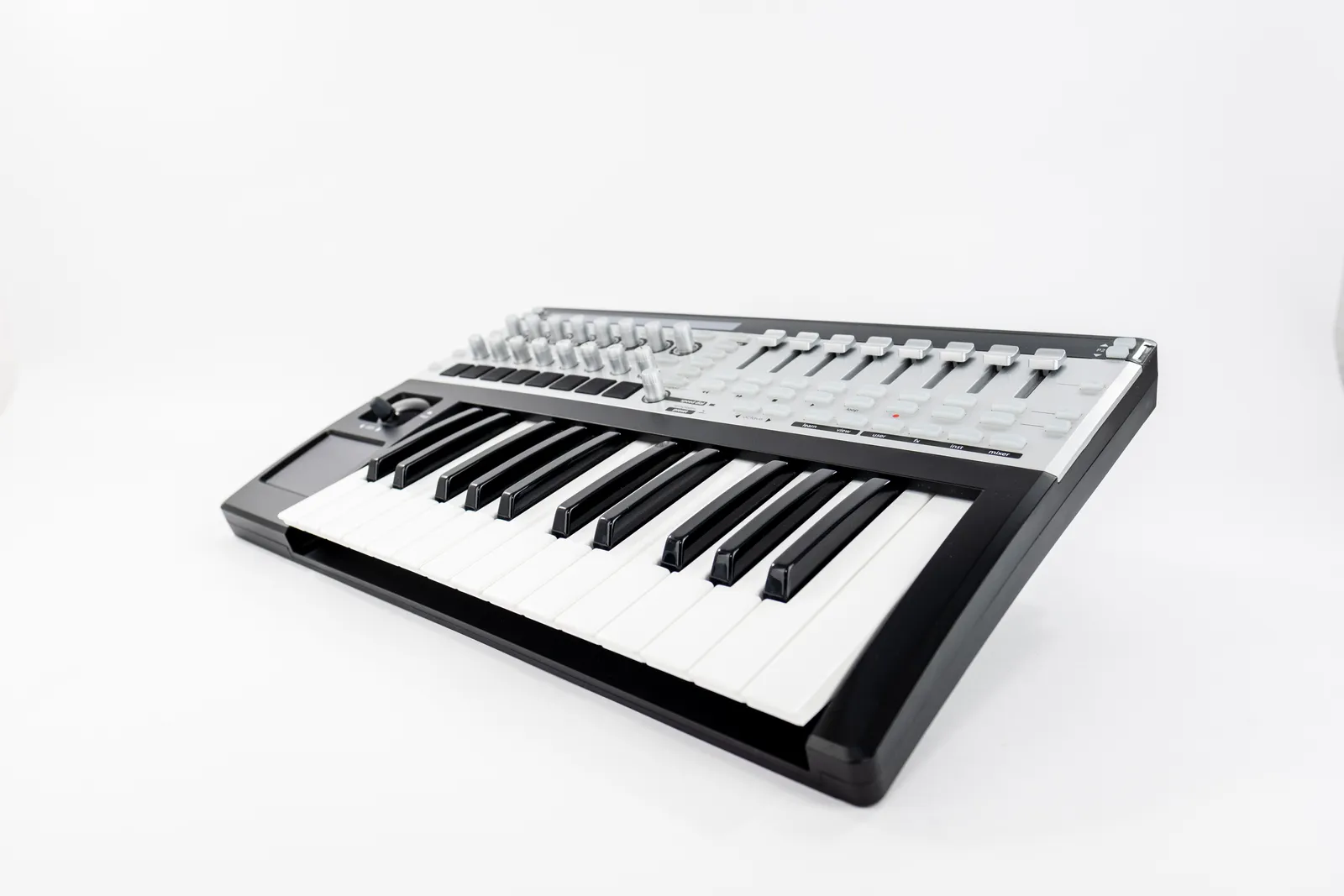
A midi control surface gives you hands-on control over your DAW - move a physical fader and the corresponding channel moves on screen, in real time. It's the difference between clicking with a mouse and reaching out and touching your mix the way engineers have done on analog consoles for decades. If you've been mixing entirely in the box and something feels missing, a control surface is usually the answer.
TL;DR
- A MIDI control surface sends fader, button, and encoder data to your DAW over USB
- MCU (Mackie Control Universal) is the most universally supported protocol - check DAW compatibility before buying
- Motorized faders are worth the extra cost for any serious mix or automation work
- Touch-based surfaces like TouchDaw offer full-channel visibility at a fraction of traditional hardware costs
What a MIDI Control Surface Actually Does
At the core, a midi control surface sends MIDI data to your DAW to move virtual parameters. You push a fader up, the surface sends a MIDI message, and your DAW interprets that as "move channel 3 up by 3dB." The same applies to knobs (which send MIDI CC values), transport buttons (play, stop, record), and function keys.
The key distinction from a generic usb midi controller is the protocol layer on top of raw MIDI. Basic MIDI controllers send note-on, note-off, or CC messages that you manually map to parameters. A dedicated control surface uses a higher-level protocol - usually MCU or HUI - that gives your DAW a richer, pre-mapped communication channel. Press "solo" on the surface and the DAW solos the right track. Switch to a different bank of channels and the display updates automatically.
This is why a $150 generic MIDI keyboard with some knobs doesn't replace a proper midi daw controller. The protocol layer matters as much as the hardware.
MCU vs HUI: The Two Main Protocols
Mackie Control Universal (MCU) is the standard most DAWs support today. Logic Pro, Ableton Live, Cubase, Nuendo, Reaper, Studio One, and Bitwig all natively recognize MCU-compliant surfaces. The protocol handles faders, encoders, transport controls, scribble strips (small LCD labels per channel), and metering. When you add an MCU surface, your DAW assigns channels to faders automatically and handles banking (scrolling across more channels than you have faders).
HUI (Human User Interface) is an older Avid protocol originally designed for Pro Tools. It covers similar territory but communicates somewhat differently. Most professional control surfaces support both MCU and HUI and let you switch via a button press or firmware menu. If you're in Pro Tools, check whether your surface supports HUI - not all cheaper controllers do.
For deeper technical reading on how these protocols transmit data, the MIDI Association's control surface documentation covers the spec in detail.
MIDI 2.0 brings higher resolution and bidirectional communication, but hardware and DAW support is still maturing as of mid-2026. It's worth knowing about, but it won't affect your buying decision today.
Types of MIDI Control Surfaces
Fader-Based Controllers
The most common type. A row of eight or sixteen faders (sometimes more), a master fader, per-channel knobs for sends and pans, and a transport section. These are built for mixing - reaching over and grabbing a fader feels natural in a way that clicking doesn't.
Motorized faders are the key variable here. Motorized faders move on their own when you switch banks or load a different project - they snap to wherever your DAW levels actually are. Non-motorized faders stay put, so they're out of sync until you physically move them, which creates a volume jump. For serious mix work or any project with automation, motorized faders aren't optional.
For a full breakdown of the motorized vs. static tradeoff and the best options, see our guide to motorized fader DAW controllers.
Pad and Encoder Controllers
These prioritize performance over mixing. Drum pads, clip launch grids, and arrays of endless encoders. Ableton Push and Native Instruments Maschine are the dominant examples. They're optimized for production - beat making, sampling, performance - rather than multitrack mixing. If you're sequencing and sound designing more than mixing, this category is worth exploring. If you need to move faders across a 32-track session, it's the wrong tool.
Hybrid Controllers
A middle ground: physical faders plus some touch-screen or display integration. The SSL UF8 is a good example - eight motorized faders with per-channel LCD displays, dual-DAW support, and a clean physical build. It doesn't pretend to be a full touch surface, but the channel displays add useful feedback without requiring a separate monitor.
Touch Screen Control Surfaces
Instead of physical faders, a touchscreen surface puts your DAW's own interface under your fingers. You drag on screen to move faders, tap to solo or mute, and pinch-zoom across your mixer view.
The Slate RAVEN panels pioneered this approach in the hardware world - vertical touch panels with RAVEN software layered between your DAW and your fingers. They're impressive, but at $2,000-$5,000+ and Mac-only, they're not accessible for most engineers.
A different architecture is a pure display approach: a touch-enabled screen that works as a second monitor showing your DAW's actual interface. TouchDaw takes this direction with a 38" x 10" horizontal touch display that lays on your desk the way a real console surface would. Your DAW's native mixer runs on it directly - no intermediary software layer, no iLok, no Mac-only restriction. At $50-190, it sits in a completely different price bracket from any motorized fader surface.
The limitation is tactile: there's no physical fader resistance or tactile snap. For engineers doing detailed manual automation passes, physical faders still have an edge. For tracking, general mixing, and any session where you want all channels visible simultaneously, the touch approach is increasingly hard to argue against on value grounds.
What to Look for Before You Buy
Channel count and banking. An 8-fader surface works for small sessions but means constant banking on larger ones. Banking means switching which channels are currently mapped to your faders, and while it works, it interrupts flow during a fast mix. Count your average track count before you commit. Sixteen faders covers most needs without banking; a full touch surface eliminates the constraint entirely.
DAW compatibility. MCU support is broad but not universal. Check the manufacturer's compatibility list against your specific DAW version. Some surfaces have extra optimization (dedicated presets, deeper integration) for one DAW that won't carry over to others.
Build quality. Faders are mechanical components with finite lifespans. Budget controllers often use resistive plastic-strip faders that wear out after heavy use. Professional-grade surfaces use high-quality Alps or comparable fader mechanisms. If you're mixing daily, build quality compounds over time.
Form factor. Horizontal layouts mirror how you'd reach across a real console. Vertical touch panels are space-efficient but require a different hand position. Consider your desk layout and how you actually work before buying on spec alone.
MIDI Control Surface Comparison
| Controller | Type | Faders | Motorized | Protocol | Price (approx) |
|---|---|---|---|---|---|
| Mackie MCU Pro | Fader | 8 | Yes | MCU | ~$800 |
| PreSonus FaderPort 16 | Fader | 16 | Yes | MCU / HUI | ~$900 |
| SSL UF8 | Fader | 8 | Yes | MCU / HUI | ~$700 |
| Behringer X-Touch | Fader | 8 | Yes | MCU / HUI | ~$400 |
| TouchDaw | Touch screen | Unlimited | N/A | Native touch | $50-190 |
Prices vary - check Sweetwater for current US pricing. TouchDaw's "unlimited" channel count reflects the full-mixer-on-screen approach rather than hardware fader count.
Setting Up Your MIDI Control Surface
The process is similar across DAWs, though menu names differ.
Logic Pro: Logic Pro menu > Settings > MIDI > Control Surfaces > Add. Logic auto-detects most MCU-compliant surfaces and assigns channels to faders.
Ableton Live: Preferences > MIDI. Set your surface input and output to "Remote" mode. Then under Link / Tempo / MIDI, select your surface from the Control Surface dropdown.
Pro Tools: Setup > Peripherals > MIDI Controllers. Choose HUI or MCU as the type, select the correct MIDI input and output, and set the channel count.
Cubase / Nuendo: Studio > Studio Setup > MIDI Remote. Add your controller and configure the mapping. Steinberg's MIDI Remote documentation has device-specific setup guides for many surfaces.
Most MCU surfaces auto-configure in Logic and Ableton. If nothing appears after connecting, check that the correct MIDI ports are selected as the active input/output for the surface - it's often a port selection issue rather than a compatibility problem.
The Full-Channel Alternative
Traditional midi control surface advice has defaulted to "buy an 8-fader MCU surface and bank when needed." For years that was the only practical option under $1,000. The Slate RAVEN offered something different but at a prohibitive price and locked to Mac.
TouchDaw represents a different class of daw control surface - one that doesn't limit you by physical fader count and doesn't require iLok, Mac-only software, or a $2,000+ budget. The 38" horizontal footprint means you're reaching across your mix the way engineers do on a real desk, with all channels in front of you at 55ms touch latency over USB-C.
It won't replace motorized faders for engineers who live inside detailed automation. But for the majority of producers and engineers who want tactile DAW control - being able to grab a fader, mute a track, and move through a mix without clicking - it's a compelling answer to the question this article set out to address.
For a broader look at where control surfaces fit in a complete studio setup, see our complete guide to DAW control surfaces and the PreSonus FaderPort deep dive for a closer look at a traditional fader-based approach.
Pro Tip: Before finalizing any control surface purchase, test your typical project template on it. Load your most complex session, put a fader on every channel, and see how banking (or the lack of it) affects your actual workflow. A surface that works great for 8 tracks may frustrate you on a 48-track mix.
FAQ
What is a MIDI control surface? A MIDI control surface is a hardware device that sends fader positions, button states, and encoder values to your DAW over USB (or occasionally MIDI DIN). It gives you physical control over DAW parameters - levels, pans, mutes, solos, transport - without touching the mouse. Most use MCU or HUI protocols for deep DAW integration.
What's the difference between a MIDI control surface and a MIDI keyboard? A MIDI keyboard sends note-on and note-off messages for playing instruments and triggering sounds. A MIDI control surface sends control data (fader levels, CC values, button states) for adjusting mix parameters. Some keyboards include knobs or faders that overlap with control surface territory, but a dedicated control surface is optimized for DAW mixing, not playing.
Do MIDI control surfaces work with any DAW? MCU-compliant surfaces work with Logic, Ableton, Cubase, Reaper, Studio One, and most major DAWs. HUI surfaces work with Pro Tools. A few DAWs (including some versions of FL Studio) have limited native control surface support. Always verify compatibility with your specific DAW version before buying - check the manufacturer's compatibility page, not just a general "works with MCU" claim.
Are motorized faders worth the extra cost? Yes, for any serious mixing or automation work. Motorized faders snap to the correct position when you switch channel banks or load a project, so the physical position always matches the DAW level. Without motors, static faders are out of sync whenever you change banks, which creates volume jumps when you touch them. The cost premium is real but justified for active mixing sessions.
What does "banking" mean on a control surface? Banking is the process of shifting which DAW channels are mapped to your physical faders. An 8-fader surface can control 64 channels, but only 8 at a time - press the bank button and your faders jump to the next group of 8. It works, but it interrupts the mix. More faders (or a touch surface that shows all channels at once) reduces or eliminates the need to bank.
What is the best midi control surface for home studio use? The Behringer X-Touch offers 8 motorized faders with MCU/HUI support at around $400, making it one of the most cost-effective motorized fader options. For engineers who want full-channel visibility without banking, TouchDaw's touch-based approach at $50-190 offers a different kind of answer - every channel visible at once, Mac and Windows compatible, no iLok required.
The midi control surface market covers everything from a $400 8-fader box to a $5,000 professional touch panel - and the right answer depends entirely on your track counts, DAW, and how much you value physical fader precision vs. full-channel visibility. Map your workflow first, then match the hardware to it.