Logic Pro DAW Controller Guide: Best Picks for 2026
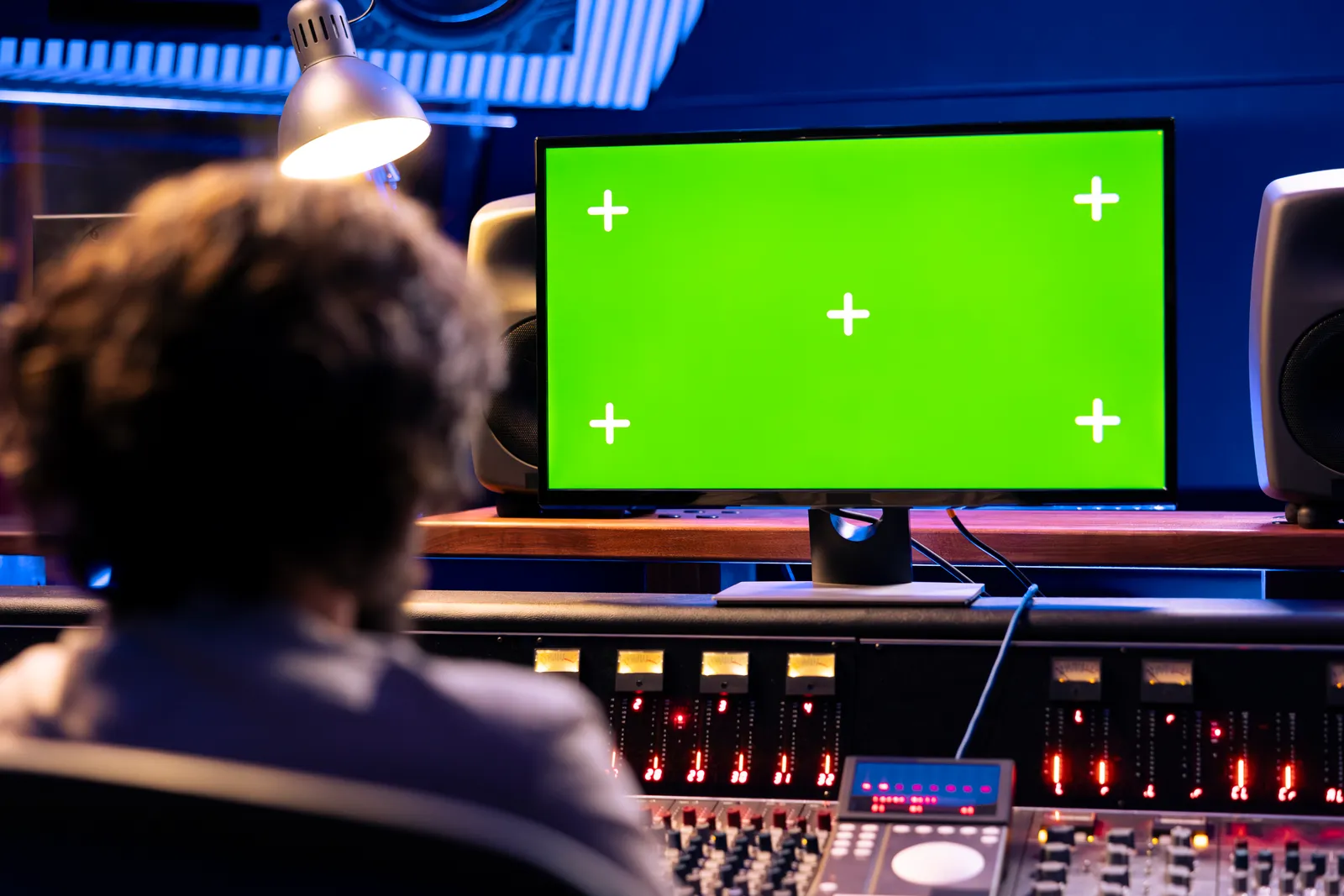
Logic Pro pairs naturally with hardware control. Once you've mixed with physical faders, going back to a trackpad feels like a step backward - your hands move slower, your eyes leave the meters more often, and the session drags. The right logic pro daw controller changes that: faders, transport controls, and channel strip functions under your fingers, responding in real time while Logic handles the rest. This guide covers what makes a controller work with Logic Pro, what to look for before you buy, and the best picks for every budget in 2026.
TL;DR
- Logic Pro natively supports MCU and HUI protocol - any compatible controller works plug-and-play with no driver setup
- The Behringer X-Touch (9 motorized faders, under $400) is the best value pick for most home studios
- The SSL UF8 is the premium choice for engineers who want build quality to match the software
- TouchDaw offers a different approach: a 38" ultra-wide touch display that gives you console-style control across your entire mix without banking
Why Logic Pro Works Well With DAW Controllers
Most DAWs support hardware control surfaces to some degree, but Logic Pro's implementation is unusually complete. Apple built native support for the MCU (Mackie Control Universal) protocol and HUI (Human User Interface) protocol directly into Logic - no third-party drivers, no special utilities.
Once you connect a compatible logic pro control surface, Logic handles parameter mapping automatically. Faders, pan knobs, mute, solo, record arm, send levels, and transport controls all bind without any manual MIDI mapping. The setup lives under Logic Pro > Settings > Control Surfaces > Setup. Add a new device, select your protocol, and Logic scans for the unit. In most cases you're running faders within five minutes of unboxing.
Apple's Logic Pro controller documentation covers the full list of compatible protocols and per-device configuration, including how to run multiple controllers in the same session - a common setup for engineers who want extended channel counts.
This native integration is one of Logic's underrated strengths. Where some DAWs require third-party bridging software or detailed MIDI mapping to get a controller working, Logic Pro's MCU implementation is reliable and well-maintained.
What Makes a Good Logic Pro DAW Controller
When you're choosing the best controller for Logic Pro, four criteria shape the decision more than anything else.
Protocol compatibility. MCU is the current standard. If a controller says "Mackie Control Universal compatible," it works with Logic natively. HUI is an older Avid-developed protocol that Logic also supports fully - most controllers from the past decade speak one or both. Avoid controllers that only offer MIDI learn or custom mapping without a proper MCU or HUI mode; the setup is more complicated and the workflow benefits are reduced.
Motorized faders. Touch-sensitive motorized faders respond to Logic's automation playback. Press play with written automation on a channel, and the fader physically moves to the correct position. This is what makes a hardware controller feel like a real console rather than just a remote control. Non-motorized faders require you to manually match the physical fader position before it takes effect, which disrupts the mix flow. For any serious mixing work, motorized faders are worth the additional cost.
Channel count and banking. Most controllers offer 8 faders. That's enough to see a section at a time - drums, guitars, or vocals - and bank through the rest of your session. If you regularly work with 32 or more tracks and frequently need to see a wide view, either look for expandable setups or consider a wider-format approach. Banking through a 64-track session on 8 faders every session adds up.
Connectivity and footprint for daw controller mac setups. Most modern controllers use class-compliant USB - no driver installation required, and Logic recognizes them immediately. Ethernet-based options offer lower latency but require more setup. Confirm the physical footprint fits your desk before buying; a full 8-fader controller is larger than it looks in product photos.
Best Logic Pro DAW Controllers in 2026: Compared
| Controller | Protocol | Faders | Footprint | Best For |
|---|---|---|---|---|
| Behringer X-Touch | MCU + HUI | 9 motorized (100mm) | Desktop | Budget home studios |
| SSL UF8 | HUI + MCU | 8 motorized (100mm) | Desktop | Professional quality |
| Mackie Control Universal Pro | MCU | 8 motorized (100mm) | Desktop | MCU compatibility |
| TouchDaw | Touch display | All channels (touch) | Ultra-wide horizontal | Wide-format mixing |
Prices fluctuate seasonally - check current availability at your preferred retailer before buying.
Behringer X-Touch: Best Budget Logic Pro Controller
The Behringer X-Touch has been the go-to logic pro midi controller recommendation for home studios and project studios for several years, and it earns that position through a clear value proposition: nine 100mm motorized touch-sensitive faders with full MCU protocol support, at a price point well under the competition.
MCU mode is the default when you power up the X-Touch, and Logic Pro recognizes it immediately. Faders track automation accurately - fast moves don't lag, and the motorized return from mutes and banks is clean enough for broadcast and post-production work. The unit also includes a jog wheel, channel selector buttons, transport controls, and a row of encoders above the faders for EQ and send control.
The build quality reflects the price. The top panel is plastic rather than aluminum, and the scribble strip displays are small and difficult to read in bright rooms with direct lighting. These are real limitations, but they don't affect the mixing workflow for most sessions.
For producers and engineers starting with hardware control for Logic Pro, the X-Touch is the practical first choice. The one caveat: if you work primarily in well-lit spaces, budget a few minutes to test the display visibility before committing to it as your main interface.
SSL UF8: Best Premium Logic Pro Controller
The SSL UF8 sits at a significantly higher price point and earns it through engineering quality that reflects decades of SSL console manufacturing experience. Eight 100mm motorized faders with metal channel selector buttons, an aluminum top panel, and integration with SSL's optional Logictivity software for deeper DAW-specific configuration.
The UF8 supports both HUI and MCU protocols, so engineers who switch between Logic Pro and Pro Tools can use the same controller without any reconfiguration. SSL's documentation covers the per-DAW setup in detail, including how the Logictivity app handles software-level configuration for extended features.
What separates the UF8 from budget alternatives in practice is precision. Automation tracking is tight, the jog wheel has appropriate weight and resistance, and channel banking doesn't produce the occasional stutter you encounter in some lower-cost controllers. The aluminum build adds to session confidence - there's no flex when you hit the buttons firmly during a long mix session.
The limitation is straightforward: eight faders is eight faders. Engineers who mix 64-track sessions and frequently need to see a wider view will spend significant time banking. Two UF8 units side by side solves the problem but doubles the footprint and the cost. For sessions that naturally stay inside 8-channel banks, the UF8 is hard to argue with.
Mackie Control Universal Pro: The Original MCU Reference
The Mackie Control Universal defined the protocol that Logic Pro and most other DAWs built their control surface support around. The MCU Pro is the current production version: eight motorized 100mm faders, transport controls, a jog wheel, and the full complement of channel strip buttons that established the template for every controller that followed.
Its age is visible in a few areas - the display technology is dated compared to SSL's scribble strips, and the unit is heavier than modern alternatives. But the MCU Pro's software compatibility is broader than any other controller on this list. Every DAW engineer has worked with MCU, most studios have had one at some point, and Logic Pro's MCU implementation was, in part, shaped around this specific device.
For Logic Pro users who want the most widely compatible, universally understood control surface - the reference implementation that every other controller is compared against - the MCU Pro is a defensible choice. The form factor shows its years, but the workflow holds up.
TouchDaw: A Wide-Format Touchscreen Approach
Every controller above shares the same core form factor: 8 or 9 faders in a row, a jog wheel, some channel buttons. TouchDaw takes a different architectural approach, and it's worth understanding what that means in practice.
Instead of discrete motorized faders, TouchDaw is a 38" x 10" horizontal touch display that lays flat on your desk. It positions your hands the way a real analog console does - reaching forward and slightly down, across the full width of your mix. Rather than banking through 8-channel views, you work with your entire session in front of you at once.
The unit connects via USB-C or Thunderbolt and works on both Mac and Windows from day one. Touch response is 55ms. The price ($50-190) puts it significantly below the hardware controllers in this comparison - a different class of purchase.
For engineers who've always worked in the box and want genuine hands-on control without motorized hardware, TouchDaw is a meaningfully different option. It works as a touchscreen controller logic pro users can add alongside a keyboard setup, or as a primary mixing surface if you're used to software workflows. The absence of physical fader resistance is the adjustment - there's no weighted throw or mechanical feedback. But the spatial advantage of seeing your whole session at once, rather than an 8-channel window, changes how you approach the mix.
For more on how different types of hardware fit into DAW workflows, the mixing workflow guide covers how engineers use both physical faders and touch control in practice. The broader comparison of DAW control surfaces covers the full range of options from compact controllers to full production surfaces.
Setting Up a DAW Controller in Logic Pro
The setup process is consistent across all MCU-compatible controllers:
- Connect the controller via USB
- Open Logic Pro > Settings > Control Surfaces > Setup
- Click the arrow button to add a new surface
- Select "Mackie Control" for MCU or "Mackie HUI" for HUI-based units
- Logic scans and connects - the unit appears in the setup panel
- Touch any fader - Logic responds immediately
For multi-unit setups (two UF8s side by side, or an X-Touch with an extender), add each device separately in the Control Surfaces window. Logic handles the channel offset automatically, so the second unit picks up where the first leaves off without any manual configuration.
One consistent tip that improves the feel of any motorized fader setup: set Logic Pro to Automatic mode for fader pickup rather than Default. This prevents the physical fader from jumping to the software position when you first touch it if the positions aren't in sync. It's a small setting, but it eliminates an annoyance you'd otherwise hit constantly during sessions.
Pro Tip: If your motorized faders show a noticeable lag during automation playback, check your I/O buffer size in Logic's Audio > Devices settings. Dropping from 512 samples to 256 or 128 produces a measurable improvement in fader motor response during playback. The trade-off is slightly higher CPU load during recording, but most modern Macs handle 128 samples comfortably during mixing passes when track count is fixed.
Frequently Asked Questions
Does Logic Pro support external DAW controllers?
Yes. Logic Pro has built-in support for the MCU (Mackie Control Universal) and HUI protocols. Any controller using these protocols integrates natively - no additional drivers or MIDI mapping required. Setup lives under Logic Pro > Settings > Control Surfaces > Setup.
What protocol does Logic Pro use for DAW controllers?
Logic Pro supports both MCU (Mackie Control Universal) and HUI (Human User Interface) protocols. MCU is the modern standard used by most current controllers. HUI is an older Avid-developed protocol that Logic still fully supports, common on legacy hardware.
Do I need special software to connect a DAW controller to Logic Pro?
Generally no. Most MCU-compatible controllers are class-compliant USB devices that Logic Pro recognizes without additional software. Some premium units (like the SSL UF8) have optional companion software that adds extra configuration features, but the core MCU integration works without it.
Can I use a touchscreen as a DAW controller in Logic Pro?
Yes. Logic Pro supports touch-based control on compatible displays. Products like TouchDaw use a capacitive touch surface to provide fader and channel strip control via USB-C or Thunderbolt. The experience differs from motorized faders but offers the advantage of seeing your entire channel layout without banking through 8-channel views.
What is the difference between MCU and HUI protocol in Logic Pro?
MCU (Mackie Control Universal) is the current standard for DAW controllers. It supports motorized faders, scribble strip displays, channel banking, transport controls, and channel strip functions. HUI is an older Avid-developed protocol with similar capabilities but less consistent implementation across devices. For new hardware purchases, MCU is the better choice.
Can I use multiple DAW controllers in Logic Pro at the same time?
Yes. Logic Pro supports multiple simultaneous control surfaces. Each unit is added separately in the Control Surfaces setup window, and Logic automatically offsets the channel banks so the second controller picks up where the first leaves off. This is a common setup for engineers who want extended fader counts without banking.
The right logic pro daw controller depends on where you're starting. If budget is the primary constraint, the Behringer X-Touch delivers professional functionality at a price most home studios can absorb. If build quality and longevity matter more, the SSL UF8 earns its premium. And if you'd rather trade motorized faders for a wider view across your full mix - and keep more of your budget for monitors or plugins - TouchDaw is worth a serious look before you commit to traditional hardware. Sound On Sound's control surface reviews cover long-term real-world usage for most of the hardware options above, which is useful context before any four-figure purchase.